Google business profile help
Fix verification issues, resolve suspensions, and manage reviews. Get the google business profile help you need to keep your profile active and visible.

AE
Mar 12, 2025
5 min read
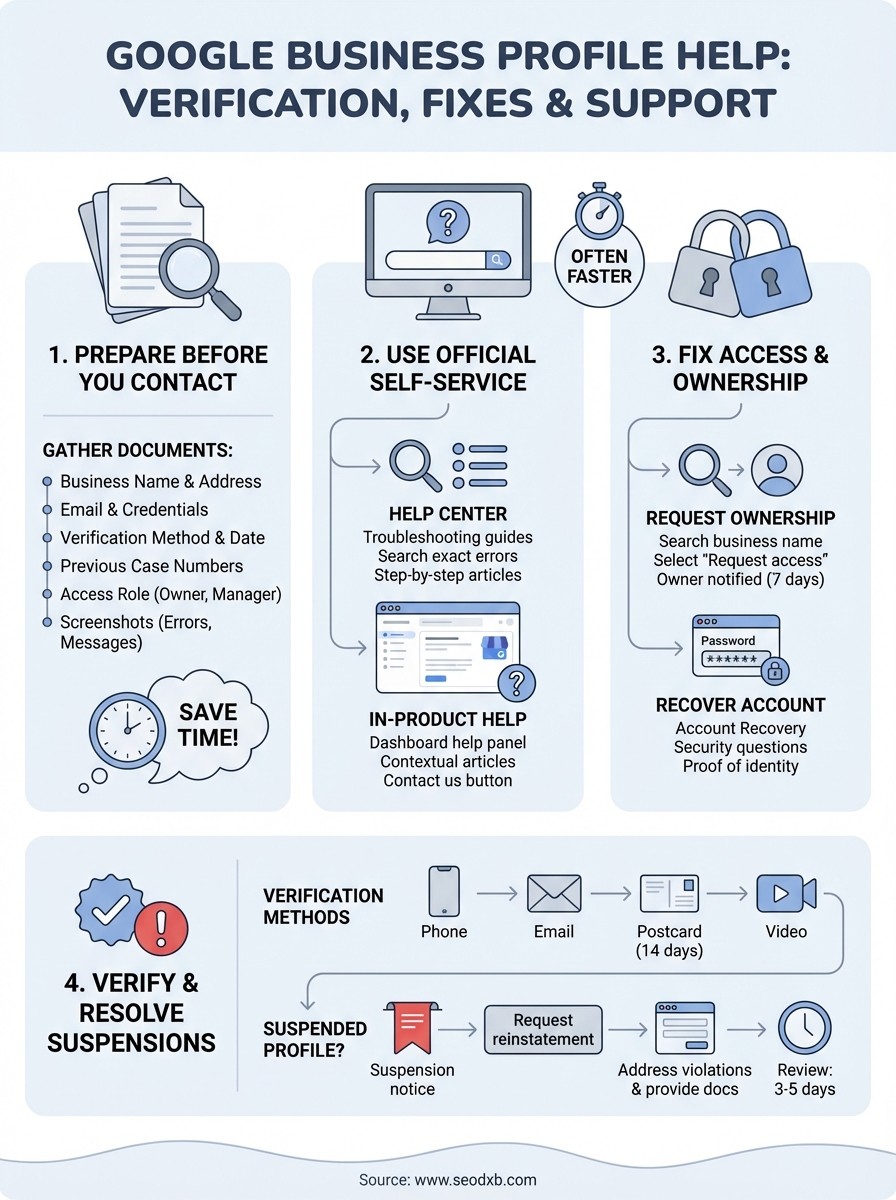
Google Business Profile Help: Verification, Fixes & Support
Your Google Business Profile is one of the most valuable assets for attracting local customers in Dubai. But when something goes wrong, a suspended listing, a verification code that never arrives, or reviews that mysteriously disappear, finding Google Business Profile help can feel like navigating a maze. You need answers, not endless forum threads that lead nowhere.
This guide cuts through the noise. We'll cover the most common GBP issues, how to fix them yourself, and exactly how to reach Google's support team when self-service options fall short. Whether you're stuck on verification, dealing with a hijacked listing, or just trying to update your business hours, you'll find actionable steps here.
At SEO DXB, we manage Google Business Profiles for companies across Dubai as part of our local SEO services. We've seen nearly every GBP problem there is, and we've documented the solutions that actually work.
What to prepare before you contact support
You'll save hours of back-and-forth with Google if you gather the right information before reaching out. Support agents need specific details to verify your identity, locate your profile, and understand the exact issue. Walking into a support conversation unprepared means delayed resolutions and repeated requests for the same documentation.

Having your documentation organized upfront reduces resolution time by 50% or more.
Information you'll need to have ready
Start by collecting your business verification details and account credentials. Google will verify you own or manage the profile before making any changes. You'll also need context about when the problem started and what steps you've already tried.
Keep these items accessible:
Business name (exactly as it appears in your GBP)
Business address and phone number
Email address associated with the account
Verification method used (postcard, phone, email, video)
Date of verification or when the issue began
Previous case numbers if you've contacted support before
Access role (Owner, Manager, Site Manager)
Screenshots and documentation to capture
Take clear screenshots of error messages, suspension notices, or any unusual behavior in your dashboard. Include the full browser window so Google can see URLs and timestamps. If you're reporting review issues, screenshot the problematic reviews with dates visible. For verification problems, capture the exact message you're seeing when the code fails or the option is unavailable. Save all confirmation emails from Google about your profile, verification attempts, or previous support tickets.
Step 1. Use the official help paths
Google provides multiple self-service channels for resolving GBP issues, and these paths often fix problems faster than waiting for agent support. Start with the Help Center and in-product options before escalating to phone or chat. Many verification errors, duplicate listings, and basic account problems have documented solutions that take minutes to apply.
Most Google Business Profile help requests can be resolved through official self-service tools within 24 hours.
Google Business Profile Help Center
The Google Business Profile Help Center contains troubleshooting guides organized by issue type. Search for your specific problem using exact error messages or keywords like "verification code not received" or "suspended profile." Each article includes step-by-step instructions with screenshots. Pay attention to the date each article was updated, as Google frequently changes their systems and older guidance may no longer apply.
In-product help and chat options
When you're logged into your Google Business Profile dashboard, click the question mark icon in the upper right corner. This opens a contextual help panel that suggests articles based on your current screen. If articles don't resolve your issue, look for the "Contact us" button within this panel. You'll be prompted to describe your problem, and Google will route you to phone support, chat, or email based on availability for your account type and location.
Step 2. Fix login, access, and ownership issues
Access problems prevent you from managing your profile even when everything else works correctly. You might see an "Access denied" message, find yourself locked out after a password reset, or discover that someone else controls your listing. These scenarios need different approaches depending on whether you've lost access to your own account or need to claim a profile currently managed by someone else.
Request ownership transfer
You can request ownership if your business profile already exists but you don't have access. Navigate to Google Business Profile and search for your business name. Click on the listing, then select "Request access" from the available options. Google will notify the current owner, who has seven days to respond. If they ignore the request or approve it, you'll gain access. Document your legitimate business relationship with photos of your storefront, business registration documents, or utility bills matching your business address.
Ownership transfers typically complete within 7 days if the current owner doesn't respond.
Recover access to locked accounts
Google sometimes locks accounts after unusual activity or suspicious login attempts. If you can't access your email address associated with the profile, use the Google Account Recovery process first. Answer security questions accurately and provide backup email addresses or phone numbers you previously linked. For Google Business Profile help with suspended access, contact support through the Help Center with proof of identity and business ownership. Keep your business registration documents, tax ID, and recent utility bills ready for verification.
Step 3. Verify, reverify, and resolve suspensions
Verification confirms you legally represent the business at the listed address. Google suspends profiles that fail verification checks, violate guidelines, or trigger spam filters. You'll need to address these issues directly through official channels rather than waiting for automatic resolution. Suspensions rarely lift on their own.

Complete verification methods
Google offers phone verification, email verification, postcard verification, and video verification depending on your business category and location. Phone and email options appear immediately if available for your account. Postcards arrive within 14 days at your registered business address and contain a five-digit code you enter in your dashboard. Video verification requires you to record a walkthrough of your business showing signage, products, and your business address visible on official documents. Submit verification through your Google Business Profile dashboard under the "Verify now" prompt.
Postcard verification remains the most reliable method when other options fail or aren't offered.
Appeal a suspended profile
If Google suspends your profile, you'll see a suspension notice in your dashboard explaining the violation. Click the "Request reinstatement" button and fill out the reinstatement form with accurate business details. Address the specific violation mentioned: remove prohibited content, correct service area boundaries, or provide business registration documents. Google reviews appeals within three to five business days. Track your case through the email confirmation you receive after submission.
“Your brand is what other people say about you when you're not in the room. In the digital world, your online presence speaks for you” — Jeff Bezos
Step 4. Correct listings, reviews, and duplicates
Incorrect business information and duplicate profiles confuse customers and split your ranking signals across multiple listings. Google often merges data from various sources automatically, which introduces outdated addresses, wrong phone numbers, or duplicate entries that divide your reviews and visibility. You need to audit your profile regularly and clean up errors before they damage your local search presence.
Remove duplicate listings
Duplicate profiles occur when you verify the same business multiple times or when third-party directories create automated listings. Search for your business name on Google Maps while logged out to identify extra profiles. Click "Suggest an edit" on each duplicate and select "Remove this place" as the reason. Provide evidence that the duplicate doesn't represent a separate physical location. For profiles you manage directly, mark one as "Permanently closed" through your dashboard, then wait 30 days before requesting removal through Google Business Profile help.
Duplicate listings dilute your authority and confuse Google's ranking algorithms.
Flag inappropriate reviews
Report reviews that violate Google's review policies by clicking the three-dot menu next to each review and selecting "Flag as inappropriate." Focus on reviews with fake content, spam, off-topic rants, or reviews that mention competitors. Google removes policy violations within five business days. Document persistent fake reviews with screenshots and contact support directly if flagging doesn't work.
Keep your profile healthy going forward
You'll avoid most future problems by auditing your profile monthly for outdated information, suspicious reviews, and ranking changes. Set calendar reminders to check your business hours, phone number, and service descriptions every 30 days. Update posts regularly to signal active management to Google's algorithms.
Monitor your Google Business Profile insights weekly for unusual drops in views or clicks. Sharp declines often indicate technical issues or guideline violations before Google sends official notices. Respond to every review within 48 hours to maintain engagement signals that boost local rankings.
Save bookmarks for the Google Business Profile Help Center and your support case numbers in a dedicated file. When you need Google Business Profile help beyond routine maintenance, having this documentation ready accelerates resolution.
Dubai businesses that need proactive profile management rather than reactive troubleshooting should consider specialized support. SEO DXB handles Google Business Profile optimization as part of our local SEO services, keeping your listing verified, optimized, and protected from suspensions.
Share Post: